

In the realm of artificial intelligence (AI), the pursuit of more powerful and efficient computing methods is perpetual. One significant avenue is the utilization of distributed computing, particularly leveraging the computational capacities of GPUs (Graphics Processing Units). Distributed computing involves multiple machines to collaboratively work on a task, and when coupled with GPUs, it offers a compelling solution for training AI models. This approach holds immense promise, as it addresses the ever-increasing complexity of AI algorithms and the growing volume of data required for training. In this article, we present a case study on developing a distributed computing cluster across multiple machines equipped with GPUs.
In a development pool, each developer typically operates with their own machine, whose performance is limited to one or at most two GPUs. However, many enterprises face constraints when it comes to investing in dedicated computing clusters, which can be both expensive to establish and quickly outdated technologically. Yet, by harnessing the collective power of these individual machines, distributed computing presents an accessible alternative. When facing an exceptional computational needs, such as generating images using diffusion models, rather than constant, everyday requirements, purchasing a dedicated cluster is not an economically viable solution but pooling computational resources can efficiently tackle demanding AI model training tasks without the need for extensive infrastructure overhauls.
One of the primary challenges lies in establishing a unified environment across all these machines, unlike a dedicated cluster, which is natively operational. Consequently, it becomes imperative to construct a virtual environment with a dedicated networking layer to fully leverage the collective computational power. This virtualized setup ensures that each machine can seamlessly communicate and collaborate on computational tasks, despite differences in hardware configurations or operating system versions. By overcoming this hurdle, distributed computing with GPUs becomes a viable solution for AI model training, enabling efficient resource utilization and scalability across diverse environments.
Finally, since the various machines must work with precisely the same dataset, rather than replicating it, there’s a need to learn how to share it effectively. One approach is through the utilization of a web API installed on a dedicated machine. In addition, this promotes a virtuous practice. This setup enables the maintenance of a single dataset accessible to all developers within the team – an approach seldom undertaken in individual workflows. By centralizing the dataset and providing access via a web API, consistency and coherence are ensured across the distributed computing environment. This streamlines development processes and also fosters collaboration and standardization within the team, ultimately enhancing productivity and the quality of AI model training outcomes.
Table of contents
- Inventory and needs
- Setup of the containers
- DDP Method
- Training a Classifier on multi nodes using DDP
- Troubleshooting
- Next steps
Inventory and needs
Materials
To streamline the tutorial, we’ll be utilizing two machines for distributed training. One machine is equipped with a single GPU (TITAN RTX 24 GB), while the other has two GPUs (a TITAN RTX 24 GB and a Quadro GV100 32 GB). Both machines are connected to the same network with the IP range 192.168.8.x. Our objective is to link these two machines and distribute the training workload across all three GPUs.
Here are the details of each machine:
- First machine:
- User name: user1@pc1
- IP address: 192.168.8.151
- GPU: TITAN RTX 24 GB
- Second machine:
- User name: user2@pc2
- IP address: 192.168.8.114
- GPUs: TITAN RTX 24 GB & Quadro GV100 32 GB
We encountered numerous challenges connecting the machines because of their different configurations. To overcome these issues, we decided to use Docker to create a consistent environment on each machine. This approach ensures that both machines have identical setups, simplifying the process of connecting them and distributing the training workload across all GPUs.
Docker Engine Installation
Before proceeding with Docker installation, ensure that both machines are running the same version of Ubuntu and its dependencies, in our case it is Ubuntu 22.04. Consistency in the operating system version is crucial for avoiding compatibility issues.
Next follow the official Docker tutorial to install the Docker engine on each machine: Docker Installation Guide for Ubuntu. We specifically installed Docker version 26.0.0, as having the same Docker version across all machines is critical to preventing potential errors during distributed training.
To verify the Docker installation and check the version, run the following command:
$ docker --version
Docker version 26.0.0, build 2ae903e
Needs
To ensure consistency across both machines, we’ll create Docker containers with identical environments that include Python, PyTorch, CUDA, and all necessary dependencies.
Setup of the containers
This section is based on the official Docker documentation. For more detailed information, please refer to the Docker official documentation.
Docker Image
The first step in setting up your environment is to choose a Docker image that meets your specific requirements. Docker Hubs offers a wide rang of pre-built images. After evaluating our needs, we selected the following Pytorch image:
- Image:
pytorch/pytorch:2.2.2-cuda12.1-cudnn8-devel
This image includes Pytorch version 2.2.2, CUDA 12.1 and CuDNN 8 in a development environment, which is well-suited for our purposes.
To pull this image from Docker Hub, execute the following command:
docker pull pytorch/pytorch:2.2.2-cuda12.1-cudnn8-develCreate an overlay Network
- First define the manager node (machine) and initialize the swarm. The machine user1@pc1 is our manager node, run in this machine:
user1@pc1:~$ docker swarm init
    Swarm initialized: current node (vz1mm9am11qcmo979tlrlox42) is now a manager.

    To add a worker to this swarm, run the following command:

        docker swarm join --token SWMTKN-1-5g90q48weqrtqryq4kj6ow0e8xm9wmv9o6vgqc5j320ymybd5c-8ex8j0bc40s6hgvy5ui5gl4gy 192.168.8.151:2377

    To add a manager to this swarm, run 'docker swarm join-token manager' and follow the instructions.
Make sure you save this token if you would like to add other workers in the future.
- Connect the machine user2@192.168.8.114 as a worker node to the swarm:
user2@pc2:~$ docker swarm join --token SWMTKN-1-5g90q48weqrtqryq4kj6ow0e8xm9wmv9o6vgqc5j320ymybd5c-8ex8j0bc40s6hgvy5ui5gl4gy 192.168.8.151:2377
This node joined a swarm as a worker.- Some useful commands:
- To leave the swarm: docker swarm leave --force
- To check the nodes connected to the swarm: docker node ls- On manager ‘user1@192.168.8.151’, create an overlay network:
$ docker network create -d overlay – attachable ddpWe named our network ddp.
You don’t need to create the overlay network on the other nodes, because it will be automatically created when one of those nodes starts running a service task which requires it.
- Check the containers connected to the network:
$ docker network inspect ddpYou will see that no container is connected to the network
- To delete the network run:
$ docker network rm ddp- Start an interactive (-it) container on the manager node and connect it to the network ddp:
$ docker run -it --name container1 --network ddp pytorch/pytorch:2.2.2-cuda12.1-cudnn8-devel
:/workspace#
Note: pytorch/pytorch:2.2.2-cuda12.1-cudnn8-devel is the docker Image.
- To exit the container:
:/workspace# exit- To check the networks on the machine:
$ docker network ls
NETWORK ID          NAME                DRIVER              SCOPE
...
uqsof8phj3ak        ddp                 overlay             swarm
Note: The worker node won’t contain the ddp network, because no container is connected to the network
- Start a detached (-d) interactive (-it) container on the worker machine and connect it to ddp
docker run -dit --name container2 --network ddp pytorch/pytorch:2.2.2-cuda12.1-cudnn8-develNote: Check if the network ddp was created in worker node.
- Ping container2 within the interactive terminal of container1 (ans vice versa)
ping container2 # container1 if in interactive terminal of container2You should see that the two containers communicate with the overlay network connecting the two hosts.
Now we have created two containers with identical environments connecting to the same Network and that communicate with each other.
DDP Method
Distributed Data Parallel (DDP) is a powerful training strategy in deep learning that distributes the computational workload across multiple devices, typically GPUs or even multiple machines. This approach allows for more efficient training of large models by parallelizing the workload, reducing the time required for training.
To understand DDP and how to implement it effectively, you can refer to the official PyTorch documentation here: Introduction to Distributed Data Parallel.
The tutorial covers key concepts, setup instructions, and best practices for using DDP in your deep learning projects.
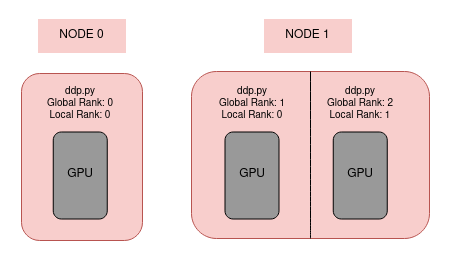
Network
As an example we will use a simple classifier:
class Net(nn.Module):
    def __init__(self):
        super().__init__()
        self.conv1 = nn.Conv2d(3, 6, 5)
        self.pool = nn.MaxPool2d(2, 2)
        self.conv2 = nn.Conv2d(6, 16, 5)
        self.fc1 = nn.Linear(16 * 5 * 5, 120)
        self.fc2 = nn.Linear(120, 84)
        self.fc3 = nn.Linear(84, 10)

    def forward(self, x):
        x = self.pool(F.relu(self.conv1(x)))
        x = self.pool(F.relu(self.conv2(x)))
        x = torch.flatten(x, 1) # flatten all dimensions except batch
        x = F.relu(self.fc1(x))
        x = F.relu(self.fc2(x))
        x = self.fc3(x)
        return x
You can replace this part of the code with any other model.
Prepare the Dataset
The dataset used is CIFAR10.
Important Note: Never Download the dataset during the training process when using DDP method.
To download the dataset CIFAR10 you can use the code bellow:
import os

from torchvision.datasets import CIFAR10


def main():
    dir_path = os.path.dirname(os.path.realpath(__file__))
    data_root = os.path.join(dir_path, "data")
    dataset = CIFAR10(root=data_root, download=True)


if __name__ == "__main__":
    main()
The dataset will be saved in a “./data” folder.
“ddp.py”
The “ddp.py” script is designed to facilitate Distributed Data Parallel (DDP) training, specifically tailored for GPU-based training with PyTorch. Here’s an overview of what the script accomplishes and the arguments it accepts:
- DDP Setup: The script initializes the DDP environment, choosing the NCCL backend, which is optimized for GPU communication. This setup is essential for efficient multi-GPU training.
- Dataset and Model loading: It loads the necessary dataset and model, preparing them for distributed training. The model is wrapped in PyTorch’s
torch.nn.parallel.DistributedDataParallelmodule to enable DDP. - Training Loop: The script includes a training loop where the model is trained for specified number of epochs. During this loop, the model parameters are updated in parallel across GPUs.
- Model Saving: The ‘
ddp.py'script periodically saves the model at intervals specified by thesave_everyargument. This feature ensures that snapshots of the model are saved during the training process, allowing for recovery in case of interruptions or incidents. If training is halted unexpectedly, the script can resume from the last saved snapshot, minimizing the loss of progress and reducing the need to restart training from scratch.
Script Arguments:
total_epochs: The total number of epochs the model will be trained for.save_every: Specifies how often (in terms of epochs) a snapshot of a model should be saved. For example, if set to 5, the model will be saved every 5 epochs.--batch_size: This arguments defines the input batch size for each device (GPU).
Training a Classifier on multi nodes using DDP
/!\VERY IMPORTANT NOTE /!\ :
Sometimes you might need to explicitly set the network interface for the distributed backend
Here is how, on both your interactive terminals:
$ export NCCL_SOCKET_IFNAME=eth0‘eth0’ is the interface your containers should be using. To check the interface execute:
$ ifconfig
eth0: flags=4163<UP,BROADCAST,RUNNING,MULTICAST>  mtu 1450
        inet 10.0.2.2  netmask 255.255.255.0  broadcast 10.0.2.255
        ether 02:42:0a:00:02:02  txqueuelen 0  (Ethernet)
        RX packets 0  bytes 0 (0.0 B)
        RX errors 0  dropped 0  overruns 0  frame 0
        TX packets 0  bytes 0 (0.0 B)
        TX errors 0  dropped 0 overruns 0  carrier 0  collisions 0

eth1: flags=4163<UP,BROADCAST,RUNNING,MULTICAST>  mtu 1500
        inet 172.20.0.3  netmask 255.255.0.0  broadcast 172.20.255.255
        ether 02:42:ac:14:00:03  txqueuelen 0  (Ethernet)
        RX packets 276  bytes 30255 (30.2 KB)
        RX errors 0  dropped 0  overruns 0  frame 0
        TX packets 0  bytes 0 (0.0 B)
        TX errors 0  dropped 0 overruns 0  carrier 0  collisions 0

lo: flags=73<UP,LOOPBACK,RUNNING>  mtu 65536
        inet 127.0.0.1  netmask 255.0.0.0
        inet6 ::1  prefixlen 128  scopeid 0x10<host>
        loop  txqueuelen 1000  (Local Loopback)
        RX packets 0  bytes 0 (0.0 B)
        RX errors 0  dropped 0  overruns 0  frame 0
        TX packets 0  bytes 0 (0.0 B)
        TX errors 0  dropped 0 overruns 0  carrier 0  collisions 0
For more informations about ‘nccl’: https://pytorch.org/docs/stable/distributed.html#choosing-the-network-interface-to-use
Execute the following commands on your interactive terminals
#On the node 0 (master: 192.168.8.151)
$ torchrun --nproc_pernode=1 --nnodes=2 --node_rank=0 --rdzv_id=456 --rdzv_backend=c10d --rdzv_endpoint=$MASTER_ADDR:48123 ddp.py 50 10

#On the node 1 (worker: 192.168.8.114)
$ torchrun --nproc_pernode=2 --nnodes=2 --node_rank=1 --rdzv_id=456 --rdzv_backend=c10d --rdzv_endpoint=$MASTER_ADDR:48123 ddp.py 50 10
$MASTER_ADDR is the name or IP of the container, in our case it is container1.
To find the container IP:
$ docker network inspect ddp
...
"Containers": {
            "6159c61dc70c85f5b555f5a8176405ee8e1fbc80902d3a5ea36b42c6432e2c9e": {
                "Name": "container1",
                "EndpointID": "79fef376377cf1a837b5dac8b1089feb0a5d9ef88a096fd2363f05ff24a1d227",
                "MacAddress": "02:42:0a:00:02:02",
                "IPv4Address": "10.0.2.2/24",
                "IPv6Address": ""
            },
            "lb-ddp": {
                "Name": "ddp-endpoint",
                "EndpointID": "0969a7c8a0c4496f947453d62bcd631587f3d1dbfcd6d85d283a8b3d4dbbd7d8",
                "MacAddress": "02:42:0a:00:02:03",
                "IPv4Address": "10.0.2.3/24",
                "IPv6Address": ""
            }
        },
...
Here the IP address is 10.0.2.2.
50 is the number of epochs ans 10 is the number save_every.
nproc_pernode: number of GPUs in the machine (1 GPU in 192.168.8.151 and 2 GPUs in 192.168.8.114)nnodes: total nodesnode_rank: rand idrdzv_id: A user-defined id that uniquely identifies the worker group for a job. This id is used by each node to join as a member of a particular worker group.rdzv_backend: The backend of the rendezvous (e.g. c10d). This is typically a strongly consistent key-value store.48123: The port on the MASTER_ADDR that can be used to host the C10d TCP store.MASTER_ADDR: The FQDN of the host that is running worker with rank 0; used to initialize the Torch Distributed backend.
Results
Training a classifier with CIFAR10 on 1 GPU
- Parameters:
- Batch size: 256
- nodes: 1
- GPUs: 1
$ torchrun --nproc_per_node=1 --nnodes=1 --node_rank=0 --rdzv_id=456 --rdzv_backend=c10d
--rdzv_endpoint=container1:48173 test.py 10 10

Results:
[GPU0] Epoch 0 | Batchsize: 256 | Steps: 196
Epoch 0 | Training snapshot saved at snapshot.pt
[GPU0] Epoch 1 | Batchsize: 256 | Steps: 196
[GPU0] Epoch 2 | Batchsize: 256 | Steps: 196
[GPU0] Epoch 3 | Batchsize: 256 | Steps: 196
[GPU0] Epoch 4 | Batchsize: 256 | Steps: 196
[GPU0] Epoch 5 | Batchsize: 256 | Steps: 196
[GPU0] Epoch 6 | Batchsize: 256 | Steps: 196
[GPU0] Epoch 7 | Batchsize: 256 | Steps: 196

<...>
[GPU0] Epoch 8 | Batchsize: 256 | Steps: 196
[GPU0] Epoch 9 | Batchsize: 256 | Steps: 196
--- 107.12095594406128 seconds ---
Training a classifier with CIFAR10 on multiple GPUs
- Parameters:
- Batch size: 256
- nodes: 2
- GPUs node 1: 1
- GPUs node 2: 2
$ torchrun --nproc_per_node=1 --nnodes=2 --node_rank=0 --rdzv_id=456 --rdzv_backend=c10d
--rdzv_endpoint=container2:48173 test.py 10 10

→ Results on node 1:
[GPU2] Epoch 0 | Batchsize: 256 | Steps: 66
Epoch 0 | Training snapshot saved at snapshot.pt
[GPU2] Epoch 1 | Batchsize: 256 | Steps: 66
[GPU2] Epoch 2 | Batchsize: 256 | Steps: 66
[GPU2] Epoch 3 | Batchsize: 256 | Steps: 66
[GPU2] Epoch 4 | Batchsize: 256 | Steps: 66
[GPU2] Epoch 5 | Batchsize: 256 | Steps: 66
[GPU2] Epoch 6 | Batchsize: 256 | Steps: 66
[GPU2] Epoch 7 | Batchsize: 256 | Steps: 66
[GPU2] Epoch 8 | Batchsize: 256 | Steps: 66
[GPU2] Epoch 9 | Batchsize: 256 | Steps: 66
--- 38.22409749031067 seconds ---

→ Results on node 2:
[GPU0] Epoch 0 | Batchsize: 256 | Steps: 66
[GPU1] Epoch 0 | Batchsize: 256 | Steps: 66
Epoch 0 | Training snapshot saved at snapshot.pt
[GPU0] Epoch 1 | Batchsize: 256 | Steps: 66
[GPU1] Epoch 1 | Batchsize: 256 | Steps: 66
[GPU0] Epoch 2 | Batchsize: 256 | Steps: 66
[GPU1] Epoch 2 | Batchsize: 256 | Steps: 66
[GPU1] Epoch 3 | Batchsize: 256 | Steps: 66
[GPU0] Epoch 3 | Batchsize: 256 | Steps: 66
[GPU0] Epoch 4 | Batchsize: 256 | Steps: 66
[GPU1] Epoch 4 | Batchsize: 256 | Steps: 66
[GPU0] Epoch 5 | Batchsize: 256 | Steps: 66
[GPU1] Epoch 5 | Batchsize: 256 | Steps: 66
[GPU0] Epoch 6 | Batchsize: 256 | Steps: 66
[GPU1] Epoch 6 | Batchsize: 256 | Steps: 66
[GPU1] Epoch 7 | Batchsize: 256 | Steps: 66
[GPU0] Epoch 7 | Batchsize: 256 | Steps: 66
[GPU0] Epoch 8 | Batchsize: 256 | Steps: 66
[GPU1] Epoch 8 | Batchsize: 256 | Steps: 66
[GPU0] Epoch 9 | Batchsize: 256 | Steps: 66
[GPU1] Epoch 9 | Batchsize: 256 | Steps: 66
--- 38.215816020965576 seconds ---
--- 38.22266745567322 seconds ---
Using 3 GPUs is almost 3 times faster than using 1 GPU.
To add: 107sec = 3 times 38 sec
Troubleshooting
Trouble using docker commands without sudo:
If you get this kind of error:
$ docker images
=> permission denied while trying to connect to the Docker daemon socket at unix:///var/run/docker.sock: Head "http://%2Fvar%2Frun%2Fdocker.sock/_ping": dial unix /var/run/docker.sock: connect: permission denied
Solution: It seems like you’re encountering a permission issue while trying to run Docker commands. This typically happens when your user doesn’t have the necessary permissions to access the Docker daemon. To resolve this issue:
- Run the command by changing $USER by the name of the user: $sudo usermod -aG docker $USER If you face problems identifying the username run the command “groups”.
- Restart docker service
$sudo service docker restart - Logout
- Run
$ docker imagesthe command is working without sudo.
Next steps
The results are positive in perspective of calculation duration… Still we need to compare the performances of each model in the same conditions. And the best way to do so is to compare the validation metrics and also by observing visually the results of the prediction.

